A practical guide for organisers and suppliers, from account verification and preparing products through collection and settlement.
9 video lessonsQR collection photo guideFor organisers and suppliersNo sign-in needed
Photos
Show a pickup code and find the order
The customer shows a pickup code. The organiser scans it in Koee App and sees the customer’s orders for their shop.
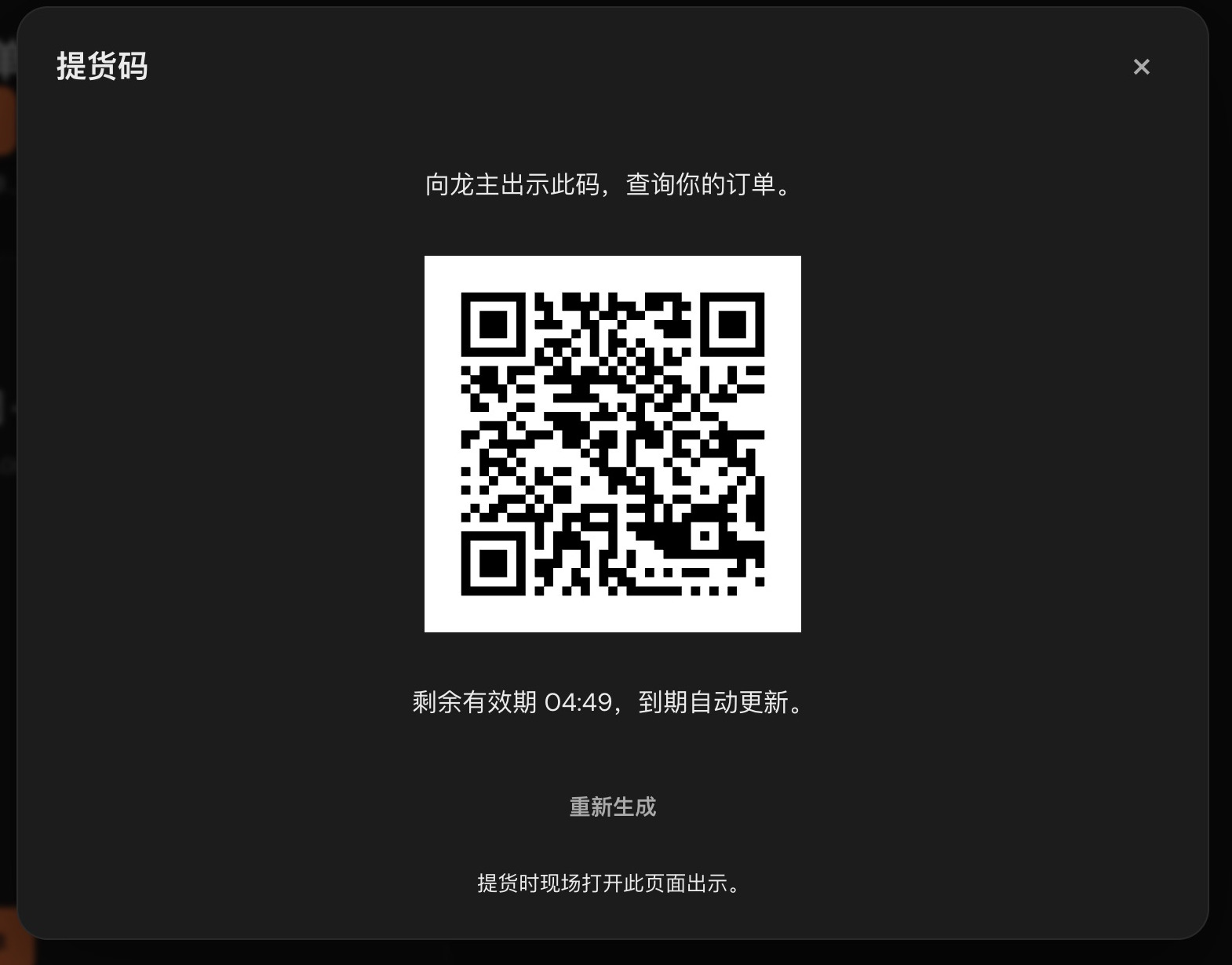
Screenshots use isolated demo data; the App menu illustrates the current interface. The pictured code has expired. Open your own pickup code at collection.
1Customer: show your pickup code
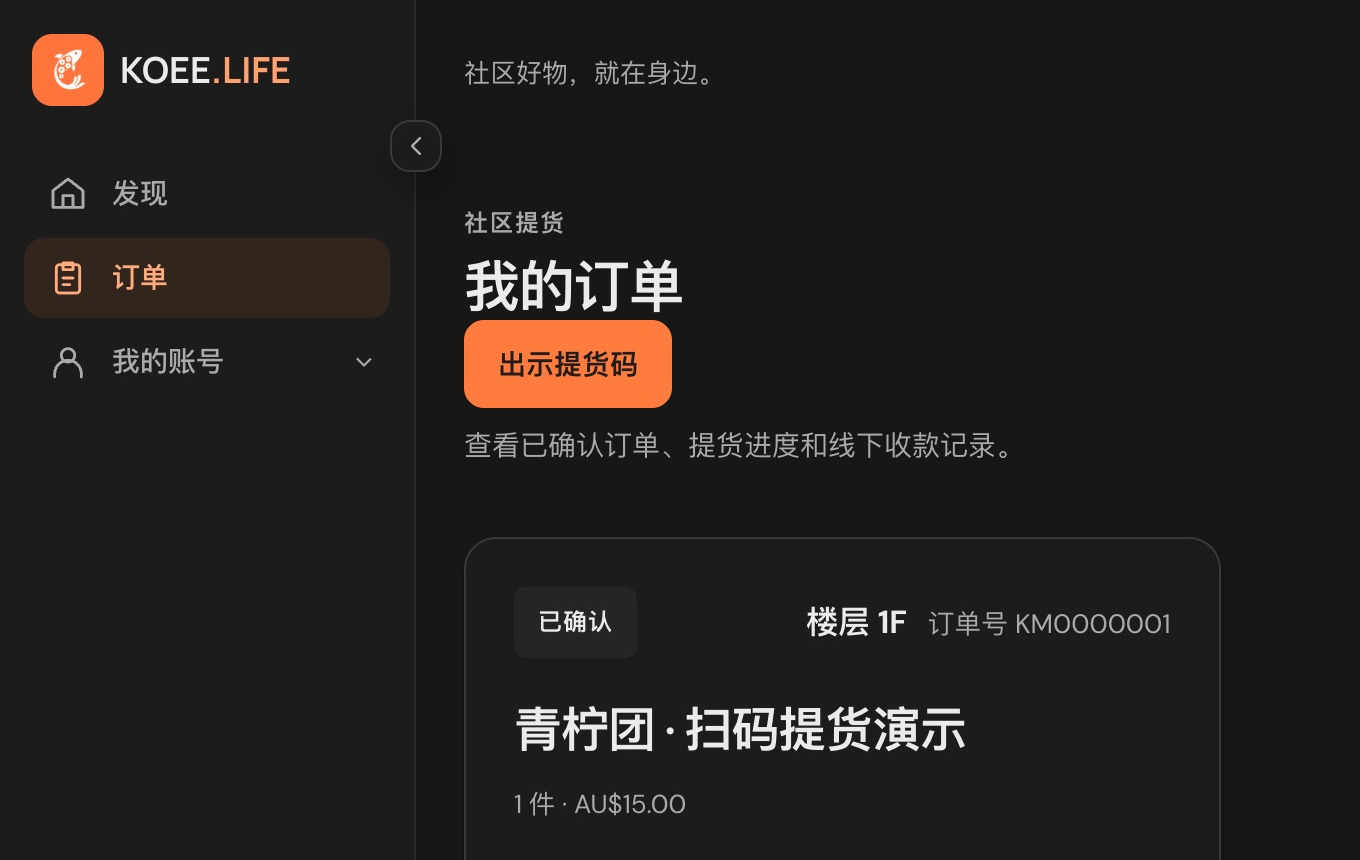
Sign in to KOEE.LIFE, open Orders and choose Show pickup code. Show the code to the organiser. It updates when it expires, so open it at collection.
Orders → Show pickup codeShow this code at collection without finding each order number.
2Organiser: Chats → + → Scan
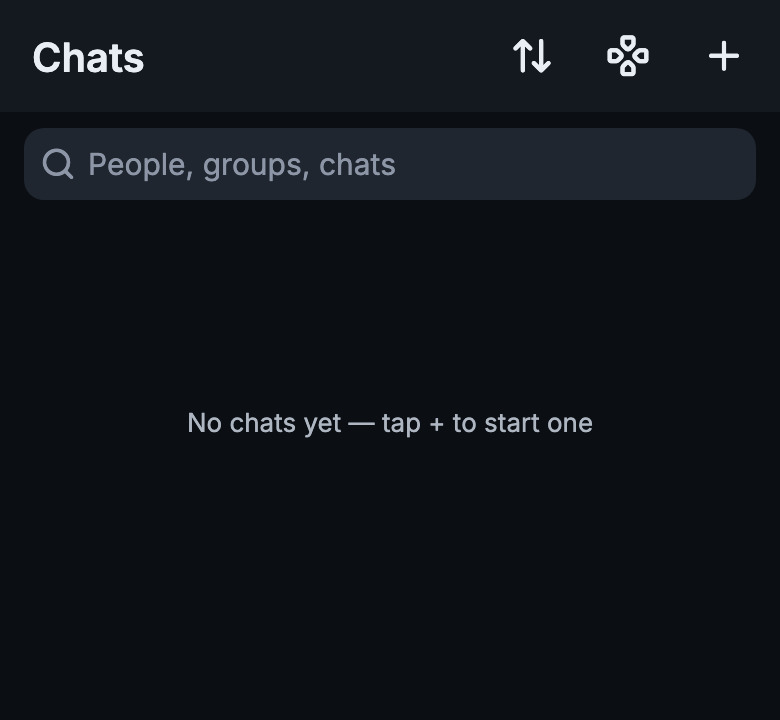
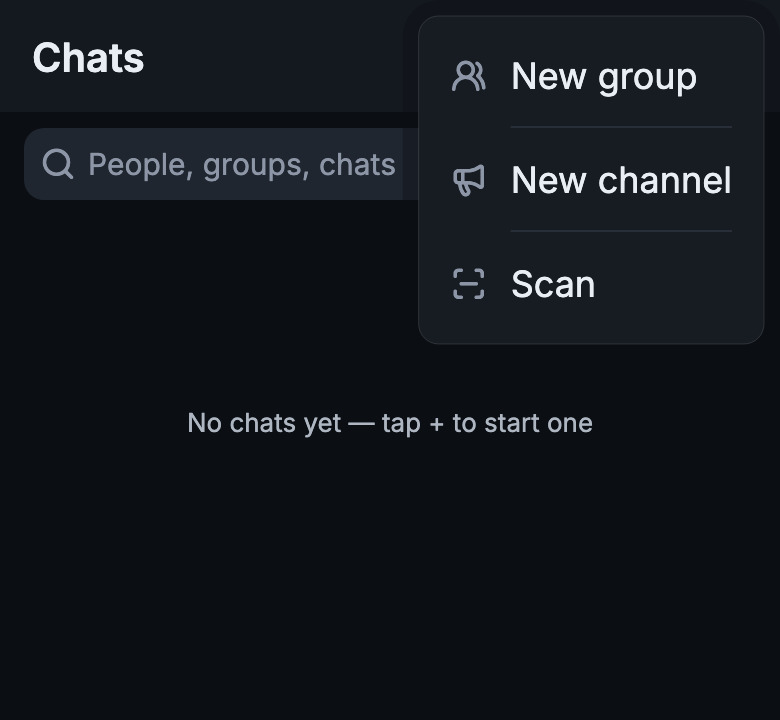
Sign in to Koee App with your organiser account. Tap + at the top right of Chats, then choose Scan.
1. Tap + at the top right of Chats2. Choose Scan
Point the scanner at the code on the customer’s phone. Recognition opens the KOEE.LIFE pickup workbench. The camera screen is omitted here.
3Organiser: check the pickup result
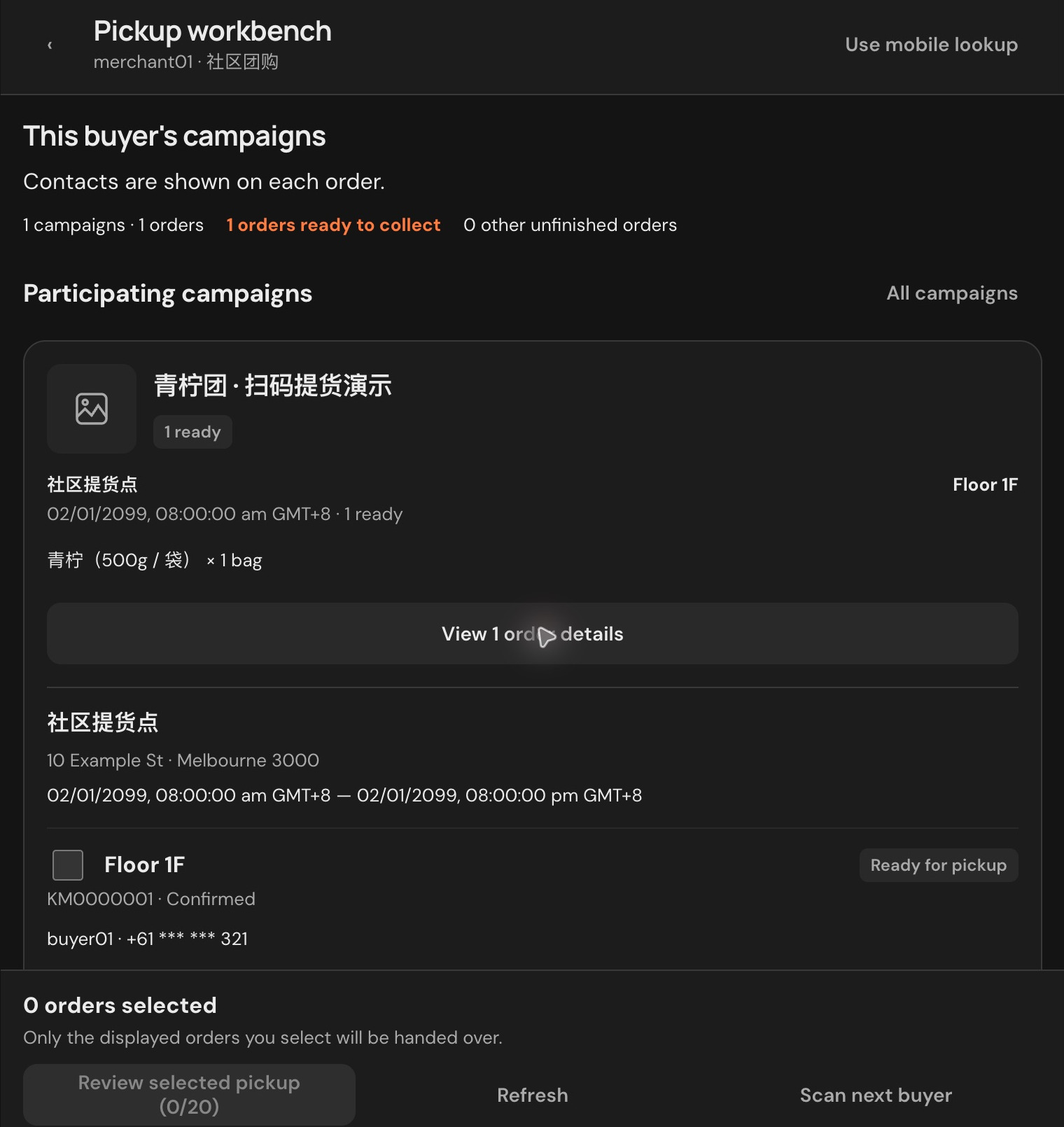
The result groups this customer’s orders for your shop by campaign. Expand the order details and check the customer, sequence, products and allocated quantities. The example is buyer01’s order, sequence 1F, with one bag of limes.
Your shop’s order result after scanning
Scanning finds orders; it does not mark them collected or paid. After handing over the goods, select, review and confirm collection. Record money received separately.
Need a little more detail?
Frequently asked questions
How does the supplier see the order totals?
After a cooperative campaign closes, the organiser checks demand in the preparation list and the supplier views the campaign batch in Supply. Sharing a product list and reviewing a closed campaign’s supply batch are separate stages; see lessons 2 and 4.
Does sharing a catalogue automatically launch a campaign?
The organiser still needs to accept the list, select products, set customer prices, a deadline and collection arrangements, then publish the campaign. Supply and customer prices are managed separately.
Is collection the same as recording payment?
Collection and money received are separate records. Confirm collection after handing over goods, then record the actual payment and check the remaining balance. The current collection workbench also supports lookup and collection; the video demonstrates the list-based approach.
Does KOEE.LIFE transfer money or calculate profit?
Currently it does not collect funds, transfer money automatically or pay commissions. Both parties agree and settle offline; the system keeps settlement and receipt records. The difference between customer collections and supplier payments is not automatically net profit.
What if quantities or amounts do not match?
Check the campaign’s products, orders, goods and payment records first, then use the available return, refund or correction tools. Do not record the same delivery or payment twice. These introductory videos cover the normal completion workflow.